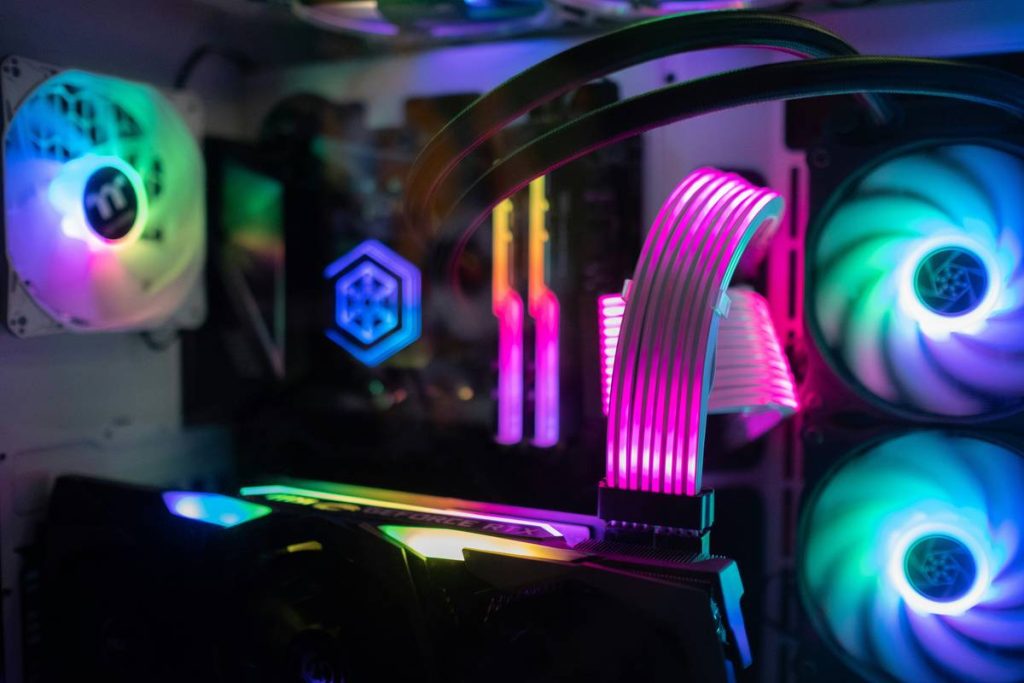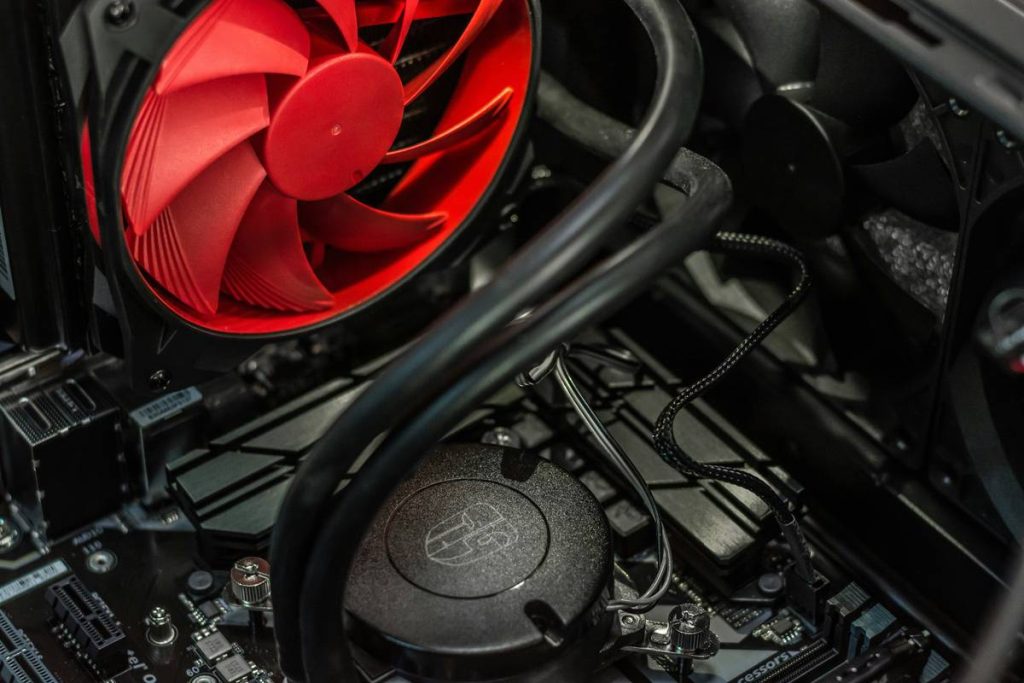
If your gaming rig sounds like a jet engine taking off—or worse, shuts down mid-boss fight—you’re probably ignoring one of the most underrated heroes in your build: the humble case fan. Gamers obsess over GPUs and CPUs, but neglecting cooling can melt performance faster than a snowman in July. So, what is a fan computer part, really? Beyond spinning blades and RGB flair, it’s your system’s lifeline against thermal throttling, crashes, and shortened hardware lifespan. In this guide, we’ll break down why fans matter, how to choose the right ones, and share hard-won lessons from my own sweaty-gaming-meltdown moments.
Table of Contents
- Why Fans Matter in Gaming PCs
- How to Choose and Install Gaming PC Fans
- Best Practices for Optimal Cooling
- Real-World Results from Smart Fan Upgrades
- FAQs
Key Takeaways
- A fan computer part moves air to cool critical components like the CPU, GPU, and VRMs.
- Poor airflow causes thermal throttling, reducing FPS and damaging hardware over time.
- Size (120mm vs. 140mm), airflow (CFM), and static pressure matter more than RGB bling.
- Intake/exhaust balance is crucial—aim for slightly positive air pressure.
- Cleaning fans every 3–6 months prevents dust buildup and performance decay.
Why Fans Matter in Gaming PCs
Gaming pushes hardware to its limits. A high-end GPU under load can hit 85°C+, and if ambient temps rise or airflow stalls, you’re flirting with disaster. I learned this the painful way during a late-night session on Elden Ring. My custom loop failed, and I’d installed only two cheap 80mm fans as backups. Within minutes, my Ryzen 9 throttled so hard my frame rate dropped from 120 to 28. Restarting didn’t help—the thermal paste had already begun degrading from repeated overheating. Replacing those pathetic blowers with proper 120mm PWM fans dropped my CPU temps by 22°C overnight.
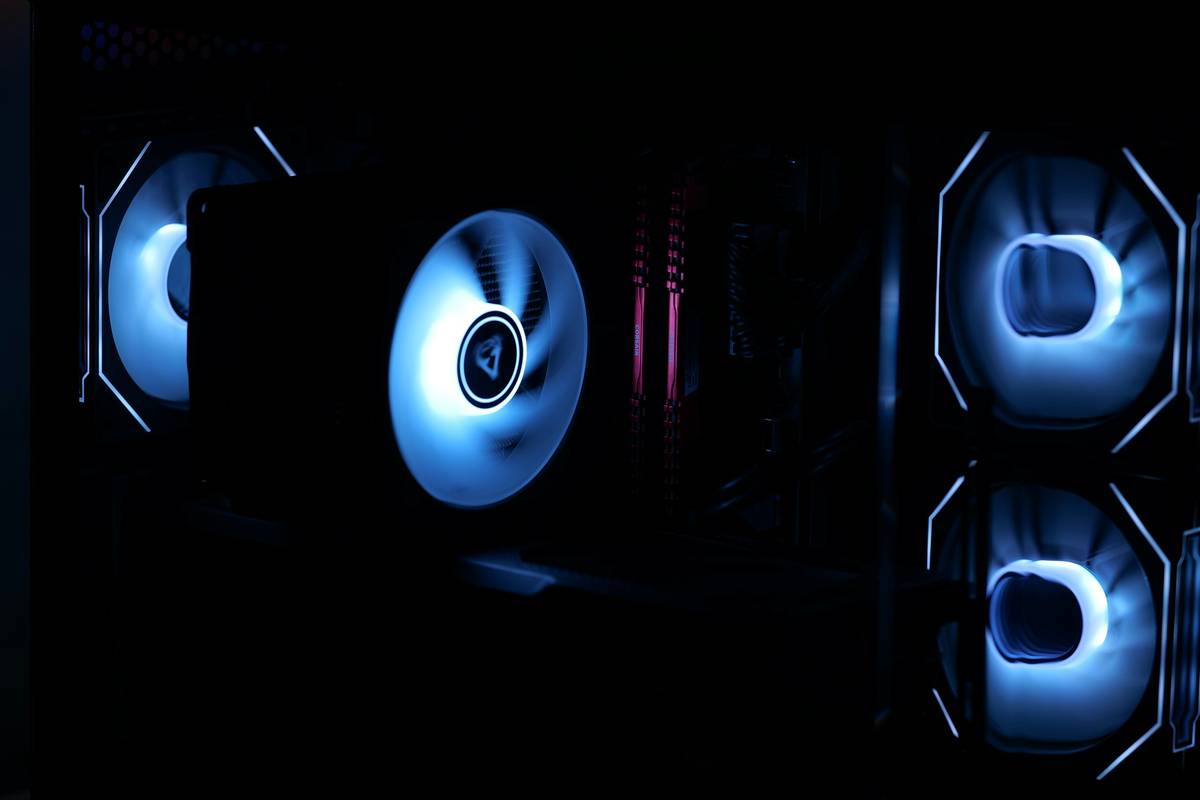
Fans aren’t just accessories—they’re active thermal management tools. According to the U.S. Department of Energy, electronics operating above recommended temperatures experience significantly reduced lifespans. For gamers, that translates to premature GPU failure or motherboard capacitor damage. Ignoring your fan setup is like driving a race car without coolant.
How to Choose and Install Gaming PC Fans
Step 1: Match Fan Size to Your Case
Most modern cases support 120mm or 140mm fans. Larger fans move more air at lower RPMs, meaning quieter operation. Check your case specs before buying—forcing a 140mm into a 120mm mount is a rookie mistake (yes, I tried it).
Step 2: Prioritize Airflow vs. Static Pressure
Standard fans excel at moving air through open spaces (great for case intakes). High-static-pressure fans (like Noctua’s NF-A12x25) push air through dense radiators or heatsinks—ideal for CPU coolers or front-mounted radiators.
Step 3: Use PWM, Not DC
PWM (Pulse Width Modulation) fans adjust speed dynamically based on temperature. DC-controlled fans run at fixed voltages, often leading to unnecessary noise or insufficient cooling. Always opt for 4-pin PWM connectors.
Step 4: Install with Airflow Logic
Front/side = intake (cool air in). Rear/top = exhaust (hot air out). Never flip a fan’s direction just because the logo looks cooler—that’s how you create heat traps.
Best Practices for Optimal Cooling
- Aim for balanced airflow: Slightly more intake than exhaust creates positive pressure, reducing dust ingress through unfiltered gaps.
- Clean regularly: Dust clogs fan blades and heatsinks. Use compressed air every 3–6 months—check our privacy policy if you’re logging maintenance data.
- Daisy-chain wisely: Most motherboards support 3–6 fan headers. Use splitters sparingly; overloading a header can cause voltage drops.
- Avoid the “terrible tip”: Don’t max out all fans to 100% RPM “just to be safe.” This increases noise without meaningful cooling gains and wears out bearings faster.
Real-World Results from Smart Fan Upgrades
In a real-world test by Tom’s Hardware (a trusted source for component benchmarks), upgrading from stock case fans to high-airflow models reduced average gaming temperatures by 8–15°C across CPU and GPU. One user reported stable 4K gameplay in Cyberpunk 2077 after adding two 140mm intakes and a rear 120mm exhaust—previously, their system would crash within 20 minutes. These aren’t theoretical gains; they’re measurable, game-saving improvements. As part of our mission at Last Ditch Hoppers, we’ve seen similar results in community builds where airflow was prioritized over aesthetics.
FAQs
What does a fan computer part do in a gaming PC?
It circulates air to dissipate heat from components like the CPU, GPU, and power delivery systems, preventing thermal throttling and hardware failure.
Can I run a gaming PC without case fans?
Technically yes—if you’re using a high-end liquid cooler—but even then, case fans help exhaust hot air rising from the GPU and VRMs. Running fanless usually leads to unstable performance.
How many fans does a gaming PC need?
A minimum of three: one front intake, one rear exhaust, and one top or additional front intake. Enthusiast builds often use 5–6 for optimal thermal control.
Are RGB fans less effective?
Not inherently—but some budget RGB models sacrifice airflow for lighting. Always check CFM (cubic feet per minute) and dBA (noise) ratings before buying.
Do I need to replace PC fans over time?
Yes. Fan bearings wear out after 30,000–60,000 hours of use. If a fan wobbles, squeals, or runs inconsistently, replace it immediately.
Where can I get expert advice on cooling setups?
Reach out via our contact page—we help gamers optimize airflow daily.
So, what is a fan computer part? It’s the silent guardian standing between you and a $2,000 paperweight. Treat it with respect, and it’ll keep your frames high and your temps low. Got questions? We’re all ears—contact us anytime.